
Project information
- Name: Industry Meter Readings Dashboard
- Type: Internship
- Project date: 2 May,2023
- Project URL: Github Link
Industrial Meter Reading Dashboard Report
Introduction
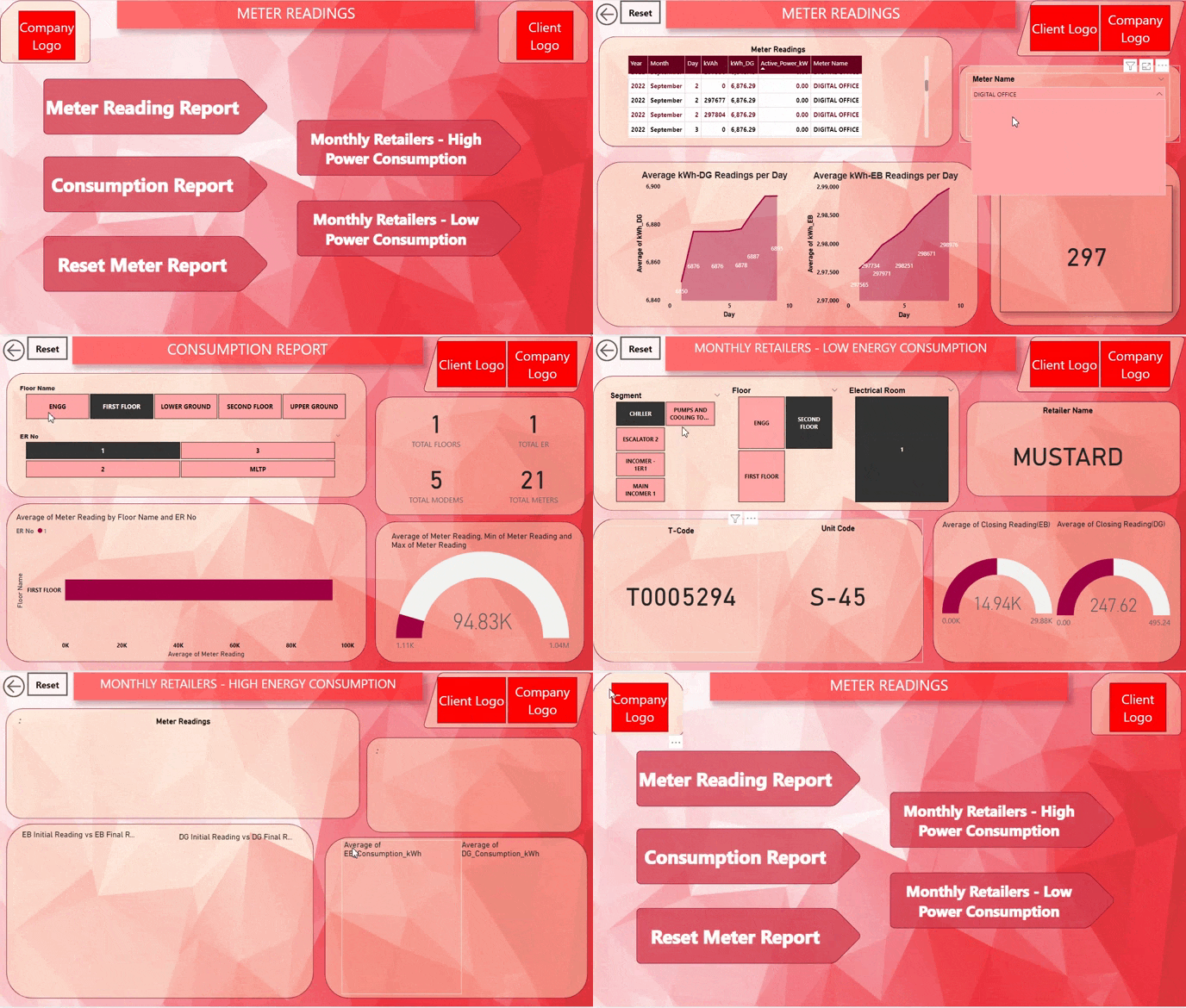
This Power BI Industrial Meter Reading Dashboard Report is an internship project focused on analyzing power consumption data in an industrial company. The project aims to provide insights into different types of meter readings, energy consumption patterns, and identifying high and low power-consuming retailers within the company.
Dashboard Sections
The dashboard consists of the following sections:
-
Overall Meter Readings:
- Total power consumption based on DG and electronic bill readings.
- Key performance indicators and trends over time.
- Comparative analysis of DG and electronic bill readings.
-
Monthly Reports:
- Monthly power consumption trends.
- A breakdown of power consumption by different meter types.
- Year-on-year comparison of power usage.
-
Energy Consumption Report:
- Detailed analysis of power consumption based on floors and rooms.
- Insights into peak consumption periods.
-
Highest and Lowest Power Consuming Retailers:
- Identification of units or retailers with the highest and lowest power consumption.
- Comparative analysis and recommendations for energy optimization.
Data Sources
The dashboard is powered by data from the following sources:
- Industrial Company Meter Data: Contains meter readings from DG and electronic bills.
- Floor and Room Data: Provides information about the company's floor and room configurations.
How to Use the Dashboard
-
Opening the Report:
- Ensure you have Power BI Desktop or Power BI Service installed.
- Open the 'Industrial_Meter_Reading_Dashboard.pbix' file using Power BI.
-
Data Refresh:
- If you want to update the data in the report, click on the 'Refresh' button in Power BI Desktop or schedule automatic refresh in Power BI Service.
-
Navigation:
- The report contains interactive elements like filters, slicers, and drill-through options for ease of navigation.
- Use these elements to filter data and view specific insights.
-
Viewing Specific Reports:
- Each section of the dashboard is accessible through the navigation pane or bookmarks (if available).
- Click on the appropriate section to access the desired report.
-
Exporting Data:
- You can export visualizations or data tables as PDFs, Excel files, or images using Power BI's export functionality.
About the Project
This Power BI project was undertaken to gain practical experience in data analysis and visualization. The objective of the internship was to apply data analytics techniques to understand energy consumption patterns within an industrial setting. The project involved the following steps:
-
Data Collection: Gathering meter reading data from different sources, including DG and electronic bill readings.
-
Data Cleaning: Preparing the data for analysis by handling missing values, removing duplicates, and resolving inconsistencies.
-
Data Analysis: Utilizing Power BI to explore the data, identify trends, and gain insights into power consumption patterns.
-
Dashboard Design: Creating interactive visualizations and reports to present the findings in a user-friendly and informative manner.
-
Report Generation: Compiling the various sections of the dashboard to provide a comprehensive overview of energy consumption within the company.
The project provided valuable hands-on experience in data analysis, visualization, and reporting using Power BI, contributing to a better understanding of real-world applications of data-driven decision-making in an industrial context.